In continuation of our previous blog where we built a Spring Boot MCP Server, let’s now dive into building an MCP Client using Spring Boot.
🧠 What is an MCP Client?
MCP (Model Context Protocol) is an open protocol that defines how AI tools, services, or models interact with each other. An MCP Client acts as a bridge between your application and a compliant MCP Server, allowing you to interact with AI models, tools, or other capabilities exposed via the MCP standard.
In this guide, we will:
- Bootstrap a Spring Boot MCP Client
- Connect it to an MCP Server
- Build a REST endpoint to interact with the server
- See it in action with OpenAI’s GPT-4o-mini model
🚀 Step 1: Bootstrap the Spring Boot Project
You can generate your project from https://start.spring.io with the following dependencies:
Spring AI OpenAI
Spring Web
Spring AI MCP Client
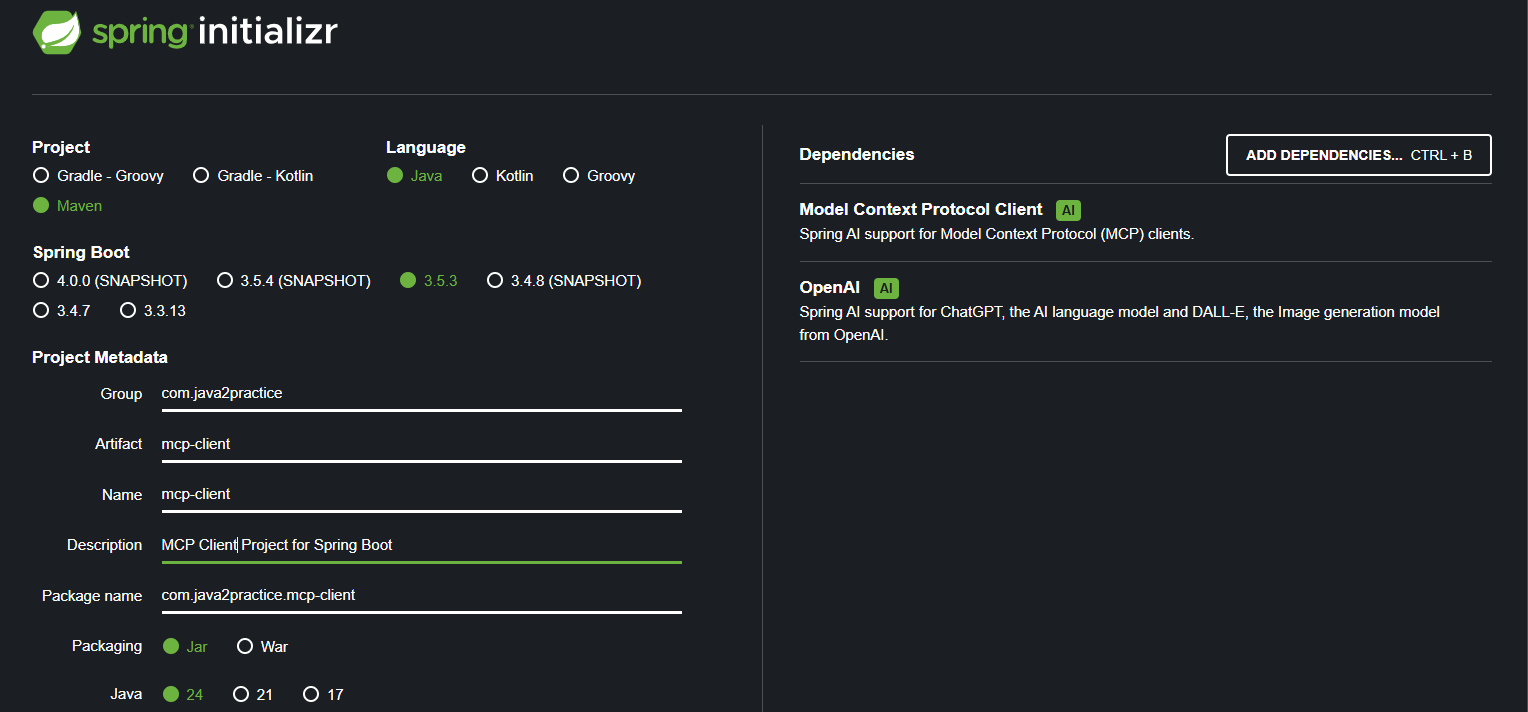
Add the following dependencies to your pom.xml:
<dependency>
            <groupId>org.springframework.boot</groupId>
            <artifactId>spring-boot-starter-web</artifactId>
        </dependency>
        <dependency>
            <groupId>org.springframework.ai</groupId>
            <artifactId>spring-ai-starter-mcp-client</artifactId>
        </dependency>
        <dependency>
            <groupId>org.springframework.ai</groupId>
            <artifactId>spring-ai-starter-model-openai</artifactId>
        </dependency>
🏗️ Step 2: Main Application Configuration
Create the main Spring Boot class, McpClientApplication.java, which configures two different ChatClient beans — one with tool support and one without.
package com.java2practice.mcp_client;

import org.springframework.ai.chat.client.ChatClient;
import org.springframework.ai.tool.ToolCallbackProvider;
import org.springframework.boot.SpringApplication;
import org.springframework.boot.autoconfigure.SpringBootApplication;
import org.springframework.context.annotation.Bean;

@SpringBootApplication
public class McpClientApplication {

	public static void main(String[] args) {
		SpringApplication.run(McpClientApplication.class, args);
	}

	@Bean(name = "chatClientWithTools")
	ChatClient chatClientWithTools(ChatClient.Builder chatClientBuilder, ToolCallbackProvider tools) {
		return chatClientBuilder.defaultTools(tools).build();
	}
	@Bean(name = "chatClientWithoutToolsSupport")
	ChatClient chatClientWithoutToolsSupport(ChatClient.Builder chatClientBuilder) {
		return chatClientBuilder.build();
	}

}
Here:
The chatClientWithoutToolsSupport bean is a plain ChatClient for simple prompt-response communication.
Create a ChatController.java for REST API
The chatClientWithTools bean registers tool callbacks from the MCP server.
🎯 Step 3: Create a Chat REST Controller
Create a simple ChatController.java to expose a REST API that allows users to send chat prompts.
package com.java2practice.mcp_client.controller;

import org.springframework.ai.chat.client.ChatClient;
import org.springframework.web.bind.annotation.PostMapping;
import org.springframework.web.bind.annotation.RequestBody;
import org.springframework.web.bind.annotation.RequestMapping;
import org.springframework.web.bind.annotation.RestController;

@RestController
@RequestMapping("/chat")
public class ChatController {

    private final ChatClient chatClientWithoutToolsSupport;

    public ChatController(ChatClient chatClientWithoutToolsSupport) {
        this.chatClientWithoutToolsSupport = chatClientWithoutToolsSupport;
    }

    @PostMapping("/ask")
    String chat(@RequestBody String userInput) {
        return chatClientWithoutToolsSupport.prompt(userInput).call().content();
    }
}
You can test this endpoint via Postman or curl:
curl -X POST http://localhost:8081/chat/ask -H "Content-Type: text/plain" -d "What is MCP?"⚙️ Step 4: Configure application.properties
Explain about application.properties
server.port=8081
spring.application.name=mcp-client
spring.ai.openai.api-key=${OPENAI_API_KEY}
spring.ai.openai.chat.options.model=gpt-4o-mini
spring.ai.mcp.client.name=java2practice-mcp-client
spring.ai.mcp.client.version=0.0.1
spring.ai.mcp.client.toolcallback.enabled=true
spring.ai.mcp.client.sse.connections.author-mcp-server.url=http://localhost:8080
📌 Make sure:
Your MCP Server is already running at http://localhost:8080 before starting the client.
You have a valid OPENAI_API_KEY set in your environment variables.
🖥️ Step 5: Start the MCP Client
Once the MCP Client is started, you should see a log similar to this:
2025-07-05T11:41:59.129-05:00 INFO 20344 --- [mcp-client] [ient-1-Worker-0] i.m.client.McpAsyncClient : Server response with Protocol: 2024-11-05, Capabilities: ServerCapabilities[experimental=null, logging=LoggingCapabilities[], prompts=PromptCapabilities[listChanged=true], resources=ResourceCapabilities[subscribe=false, listChanged=true], tools=ToolCapabilities[listChanged=true]], Info: Implementation[name=java2practice-mcp-server, version=0.0.1] and Instructions nullThis log confirms that your client successfully registered with the MCP Server and has access to its declared capabilities and tools.
Code is available at https://github.com/rameshcharykotha/spring_boot_mcp_client
 Java2practice
Leave a comment